
Multi-Store Hub: Connect Shopify, WooCommerce & BigCommerce
Connect Shopify, WooCommerce, BigCommerce & Squarespace stores from one dashboard. VNDLY unifies inventory, orders, and pricing across all platforms.
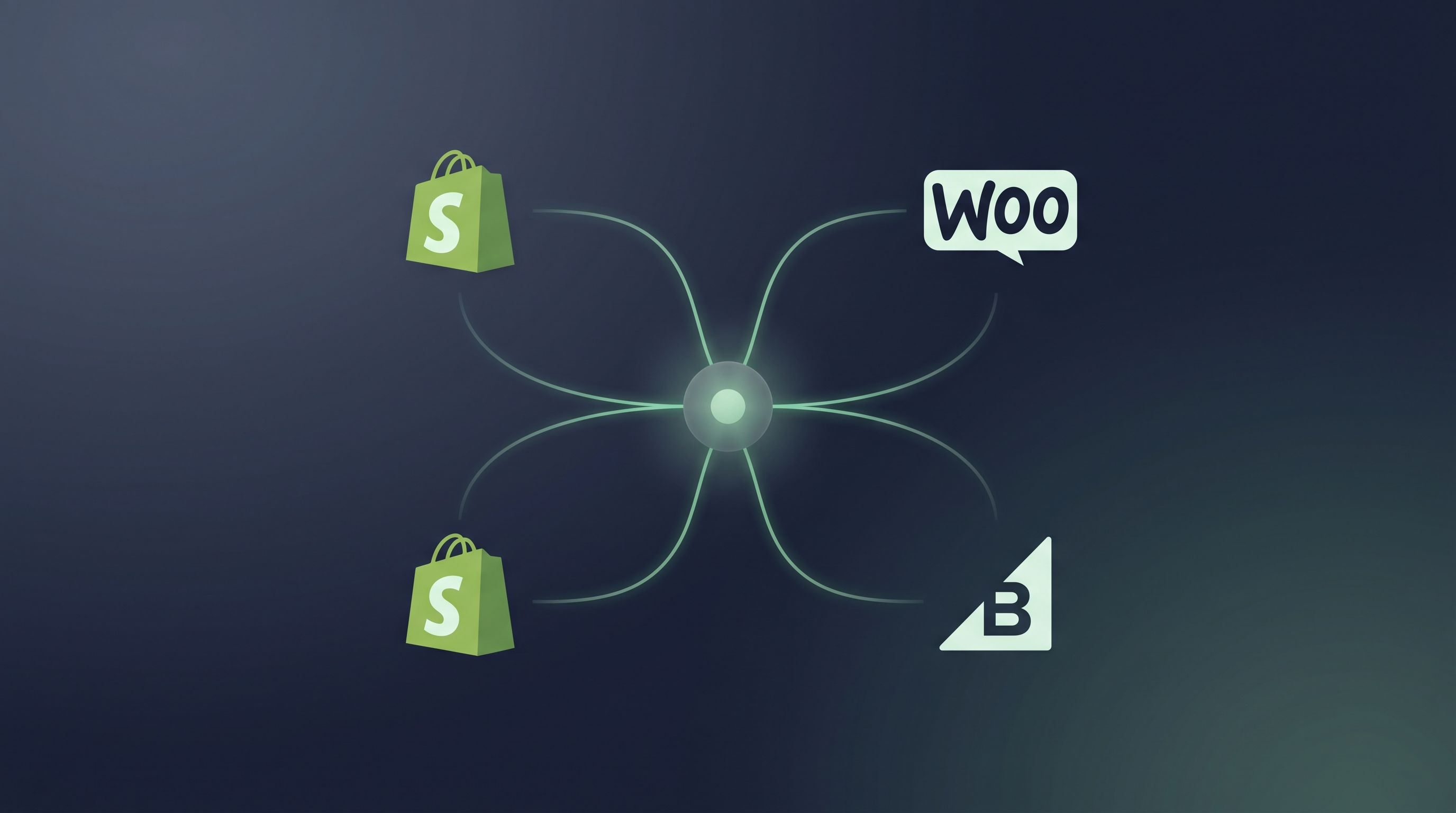
Multi-Store E-Commerce Hub: Connect Multiple Stores in One Dashboard
If you sell on more than one store, you know the pain. Tab-switching between Shopify admin panels. Copy-pasting inventory counts into spreadsheets. Wondering which WooCommerce store actually has stock left.
Today, VNDLY is your multi-store command center. Connect as many Shopify, WooCommerce, BigCommerce, and Squarespace stores as your plan allows, and manage them all from one place.
⚡ The Short Version
Go to Settings → Integrations, click + Add Another Store below any connected platform. Each store gets its own settings card with independent sync, price lists, and inventory controls. Filter your Dashboard and Reports by store to see per-channel performance.
Why Multi-Store Matters
Growing e-commerce brands rarely sell on just one platform. Maybe you have a Shopify store for your D2C brand, a WooCommerce site for wholesale, and a BigCommerce storefront for a regional market. Or maybe you run the same brand across multiple Shopify stores, one for the US, one for Europe.
Until now, most inventory management tools made you pick one. Or worse, they supported "multi-channel" but treated every platform as a single connection. Two Shopify stores? Sorry, pick one.
VNDLY lets you connect them all.
How It Works
1. Add Stores With One Click
Head to Settings → Integrations. Below each connected store, you'll see a + Add Another Store button. Click it, and an empty connection card appears. Fill in your credentials, or authorize via OAuth for Shopify, and you're live.
Each connected store gets its own full settings panel:
- Sync direction, Push products to the store, pull from it, or sync both ways
- Price list, Assign a different price list per store (wholesale pricing for your B2B WooCommerce, retail for your D2C Shopify)
- Inventory locations, Choose which warehouse locations feed each store
- Web order prefix, Keep orders organized with prefixes like
US-,EU-,WH- - Individual sync, Sync one store at a time instead of all at once
2. Name Your Stores
Every connected store can be labeled with a custom name, "US Store", "EU Wholesale", "Holiday Pop-Up", so you always know which is which. Hover over the store name and click the pencil icon to rename.
3. Filter Everything by Store
Once you have multiple stores connected, a Store Filter appears on your Dashboard and Reports. See revenue, top products, and order volume by individual store. Answer the question: "Which store is actually driving growth?"
📊 Per-Store Analytics
The store filter works across all dashboard widgets, sales overview, revenue trends, top products, top customers, and category breakdowns. Every chart and metric can be scoped to a single store or viewed across all stores combined.
Supported Platforms
VNDLY's multi-store support works with four major e-commerce platforms:
- Shopify, OAuth-based connection. Click "Install from Shopify" and authorize each store individually.
- WooCommerce, Credential-based. Enter your store URL, Consumer Key, and Consumer Secret for each store.
- BigCommerce, API-based. Provide your Store Hash and Access Token per store.
- Squarespace, API key connection per store.
Shipping integrations (EasyPost, Shippo, Fraktjakt, Sendcloud) and accounting integrations (Xero, Fortnox, Visma, QuickBooks) remain single-instance because they're shared services across your entire business.
Plan-Based Store Limits
Multi-store is available on all plans with sensible limits:
Starter
Perfect for one webshop + one wholesale channel
Professional
For brands expanding across regions and platforms
Enterprise
Your hub, your rules, connect everything
You can see your current usage on the integrations page: "2 of 10 stores connected". When you hit your limit, an upgrade prompt appears.
Real-World Use Cases
The Regional Expander You run a Shopify store for the US market and another for Europe. Each store has different pricing (USD vs EUR), different inventory locations (US warehouse vs EU fulfillment center), and different product catalogs. VNDLY keeps them synced independently.
The Wholesale + D2C Brand Your Shopify store handles consumer sales at retail prices. Your WooCommerce site serves wholesale buyers at volume discounts. VNDLY assigns different price lists to each, syncs inventory across both, and lets you see which channel drives more margin.
The Multi-Brand Operator You manage three brands, each on its own BigCommerce storefront. VNDLY treats each as an independent connection with its own settings, but your inventory, suppliers, and purchase orders are shared across the business.
Getting Started
- Go to Settings → Integrations
- Connect your first store (if you haven't already)
- Click + Add Another Store to add more
- Label each store so your team knows which is which
- Set independent price lists and sync settings per store
- Check your Dashboard, the Store Filter appears automatically when you have 2+ stores
Multi-store is live now for all VNDLY users. Start your free trial or upgrade your plan to connect more stores.
Related articles
- IntegrationBigCommerce Inventory Sync: Stop Overselling [2026]
- Comparison7 Best WooCommerce Inventory Software [2026 Tested]
- How-To GuideWooCommerce Inventory Sync Guide: VNDLY Setup [2026]
- How-To GuideVNDLY Shopify Integration: Complete Setup Guide [2026]
- StrategyWhy Your Shopify Inventory Is Always Off [And How to Fix It]
- StrategyShopify vs WooCommerce: Which Is Right for Your Business?