
Drag, Drop, Done: How VNDLY Makes Inventory Management Fun
VNDLY's new drag-and-drop features let you build orders, organize products, and assign teams in seconds. Less clicking, more doing.
There's a dirty secret in inventory management software: most of it feels like it was designed by people who've never actually used it.
You click "Add Line Item." You get a tiny search box. You type a SKU. You select from a dropdown. You tab to the quantity field. You type a number. You repeat this forty times. By the end, you've spent twenty minutes building an order that should've taken two.
We got tired of it. So we rebuilt the way you interact with VNDLY from the ground up around drag-and-drop.
What's New
- Product Catalog Panel, drag products into orders
- Reorderable Line Items, grab and rearrange
- Tag Manager, organize products visually
- Category Manager, assign categories by drag
- Team Assignment, drag customers onto reps
- Price List Assignment, drag parties and products onto lists
The Product Catalog Panel
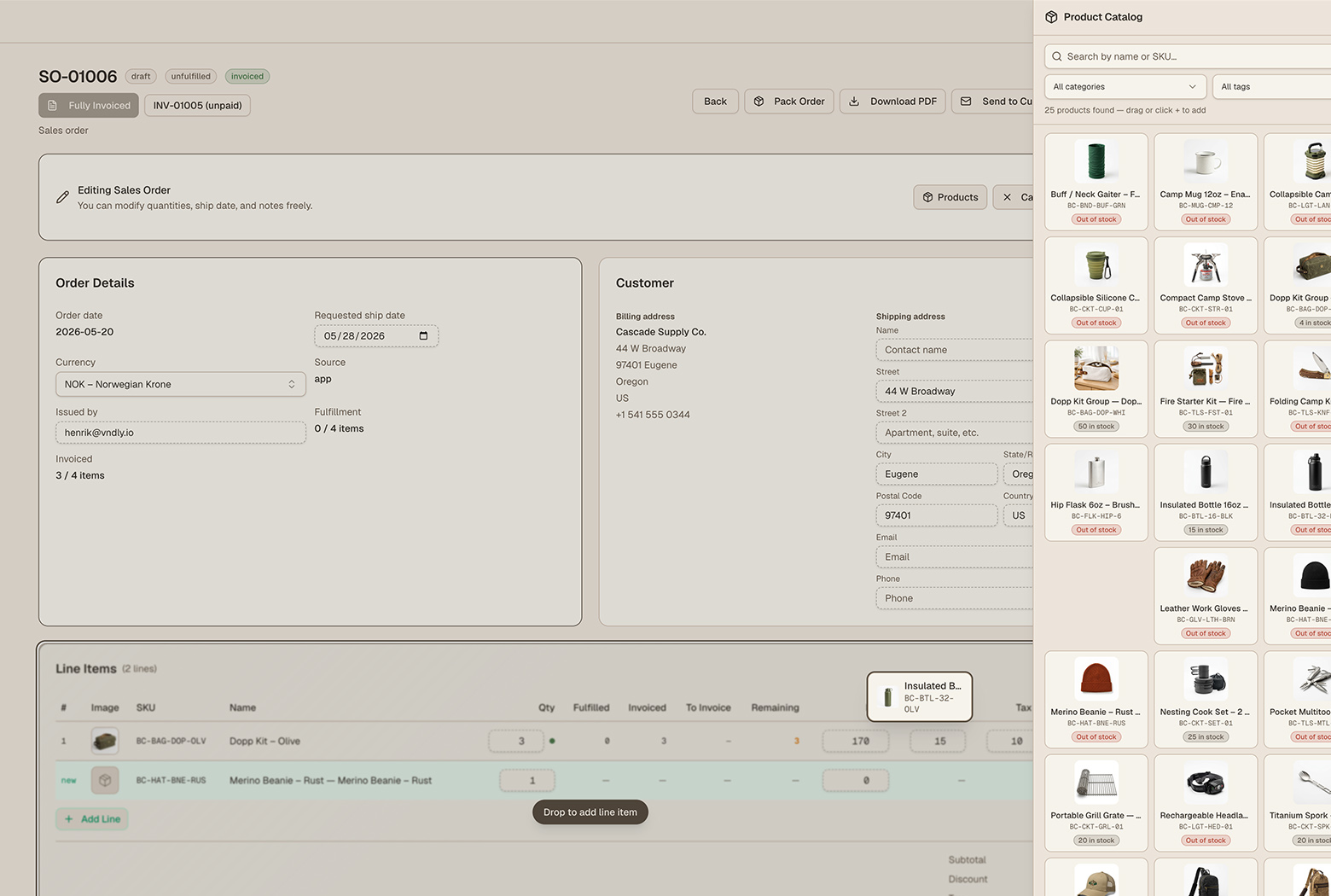
When you're creating a Sales Order or Purchase Order, there's now a Products button at the top of the page. Click it, and a catalog panel slides out from the right.
Your entire product catalog is right there, searchable by name or SKU and filterable by category and tag. You can switch between a compact list view or an image grid. Then just drag a product onto your order.
The line item fills itself in. SKU, name, price from your price list, all auto-populated. No typing required.
You can also click the + button on any product for a quick-add without dragging. Either way, it's faster than the old process.
If a supplier or customer has a price list assigned, the catalog automatically filters to show only products on that list. Toggle "Show all products" when you need the full catalog.
Building orders shouldn't feel like data entry. Try the new catalog panel, it changes the way you work.
Start free trial →Reorderable Line Items
Ever created an order and realized the lines are in the wrong sequence? In most systems, you'd have to delete and re-add them. In VNDLY, just grab the drag handle and move them.
Every line item on Sales Orders and Purchase Orders now has a small grip icon on the left. Drag to rearrange. The new order saves automatically. No edit mode, no save button, no refresh. Just grab, move, done.
Organize Products Visually
Tag Manager
Tags are powerful, but most systems make managing them feel like homework. VNDLY's Tag Manager makes it visual.
Open the Tag Manager view on the Products page, and you'll see your tags as boxes on the left and your products on the right. Drag products into tag boxes. Click the × to remove. Filter to show only untagged products so you can quickly catch anything that needs organizing.
Tags are perfect for seasonal collections, promotional groups, supplier batches, any grouping that doesn't fit neatly into a category.
Category Manager
Categories work the same way, with one key difference: each product can only have one category. When you drag a product into a category box, it moves there. The right panel automatically hides products that are already categorized, so you can focus on what's left.
Double-click a category name to rename it. All products in that category update instantly. Delete a category and all its products become uncategorized again.
Tags vs. Categories
Tags are flexible, a product can have many tags. Use them for seasonal groupings, promotions, or custom filters.
Categories are exclusive, one per product. Use them for your core product taxonomy (Apparel, Electronics, Outdoor Gear, etc.).
Both are managed with the same drag-and-drop interface. Both auto-save instantly.
Assign Teams with a Drag
Customer relationship management shouldn't require a spreadsheet. VNDLY's Assign Team view on the Customers page shows your team members as boxes on the left and your customers on the right.
Drag a customer onto a team member to assign ownership. See everyone's workload at a glance. Filter to show only unassigned customers. It's a fast way to distribute accounts across your sales team.
Price List Assignment
Price lists are the backbone of B2B and wholesale pricing. But assigning customers to the right price list used to mean opening each customer record individually and selecting from a dropdown.
Now you drag them instead.
The Assign Parties view on the Price Lists page shows your price lists grouped by type, Sales, Retail, and Purchase, with customers and suppliers in a panel on the right. Drag a customer onto a price list. Business rules are enforced automatically: purchase lists only accept suppliers, sales lists only accept business customers, retail lists accept everyone.
The same drag-and-drop pattern works for assigning products to price lists, complete with quantity tiers and multi-currency support.
The Philosophy
Every feature in this update shares the same principle: reduce the distance between thinking and doing.
When you know you want Product X on an order, you shouldn't have to navigate three menus to get there. When you know Customer Y belongs to Sales Rep Z, you shouldn't have to open a form and find a dropdown.
Drag it. Drop it. It's done.
These aren't flashy AI features or complex automation workflows. They're the small things that add up to hours saved every week. The kind of improvements that make you think "why didn't it always work like this?"
That's what we mean by quality of life.
Ready to work faster? All drag-and-drop features are available now on every VNDLY plan. No setup, no configuration, just open your account and start dragging.
Try VNDLY free →Related articles
- Product UpdateVNDLY Affiliate Program: Earn 20% Recurring Commission
- Product UpdateVNDLY Scanner: Barcode & NFC Inventory Scanning 2026
- Product UpdateYear Wheel: Plan Product Launches All Year
- Product UpdateProduct Development Pipeline Guide: Idea to Launch
- Product UpdateVNDLY Features: All-in-One Inventory [From $49/mo]
- Product UpdateVNDLY + ShipStation: Push Orders, Pull Tracking